Simply Speech: Apps

Showing posts with label Apps. Show all posts

Using Timers in Therapy and at Home!

Monday, December 19, 2016
Timers have been a saving grace for me as both a therapist and as a mom. I use a timer on a regular basis and for SO many reasons. In therapy I use a timer for keeping kids on track and focused on a task for a certain amount of time, for alerting me when the session is over, for alerting the students when their work time is up and they get the reward they were working for. At home I use a timer to help speed up my slow eater at dinner time when we have dance class in an hour, so my daughter will brush her teeth for more than 12 seconds, and so I don't burn dinner! It's a beautiful thing when you can use the techniques you use in therapy at home with your own children! 
I have used many different timers over the years, but I just recently learned about Outloud Timer 2 and I am in love. This timer is a visual timer. I have used a countdown timer before, but this one gives younger children that don't quite understand that concept a true understanding of time and how much time they have left on a task. 
When you open the app, it prompts you to set a time. This can be in minutes or seconds. After the timer is set, you will see an outdoor scene. You or the child can draw a path anywhere on the screen for the penguin to go. After the path is drawn, the penguin starts his journey to the circus tent!
I love this app because my daughter and students can really understand how much time they have left since they can see how fast the penguin is moving and how far away the penguin is from the tent while he/she is working. The number countdown is still available at the bottom right side of the screen, but where the penguin is on the screen is such as great visual for younger kids!
Once the timer is up, stars fly across the screen and the children will hear applause! 
The Outloud Timer2 app is available in the iTunes store. You can download it on both the iPad and your iPhone. I love having it on my phone for spontaneous needs of a timer! Check out more about this app in the iTunes store, here!
Disclaimer: I was provided a copy of this app in exchange for a review, however, all opinions expressed in this review are my own. 

In My APPinion: Learning Verbs by Language Concepts

Friday, January 29, 2016
APPY Friday! One if the most amazing things about blogging, actually social media in general, is the connections I have been able to make with other creative and talented SLPs. Recently I was contacted by Anna about an app she created with another SLP. I was more than happy to check it out, especially since it targeted verbs. I know I am not the only one that can use more resources for teaching verbs. So here it is! Check out my review of Learning Verbs! Make sure you follow me on Instagram (@simply_speech) for a chance to win a copy of this app!
I was provided with a copy of the app in exchange for the review, however, all opinions expressed are my own. 
When you open the app, you will see a screen like the one above. Here is the main page where you can adjust settings and chose which verbs you want to target with your student. A total of 22 verb picture cards are included. I love that they are real life pictures instead of cartoons or drawings. The images are bright, colorful, and engaging. I also am a big fan of any app that allows you to customize features. This app allows you to add/upload your own photos. My first thought for this was to have my students act out the verbs and take their picture to use in the app. I feel like so many students would benefit from this feature!


Once you adjust your personal settings, click Play! Depending on how many 'cards per round' you chose, your screen will look different. Above is for the 4 card option. 

Another fantastic feature this app allow is the ability to adjust between the number of cards shown right in the middle of using the app. Tap on the gear icon at the top of the screen and it allows you to make changes. Simply tap, Resume when you are finished. This has come in handy when working with multiple students or realizing a students is having difficulty with the concept mid way through the list. 

After you have gone through the entire list of verbs (or the number you have chose to use) you will see the screen below. 
 This app has been a very useful tool to keep in my bag of verb tricks. It is a simple app, it  doesn't allow for settings for multiple students or keep data, bit that's ok. It is quick and to the point with what it targets. This is a fantastic resource for baseline and growth data collection on verbs as well as something that can be used to teach the topic. I absolutely love the clear and colorful images. For $2.99, I really can't ask for more! You can download your own copy of this app in the iTunes store, here. 

Make sure you follow me on Instagram for a chance to win your own copy thanks to the sweet creators of this app!

In My APPinion: Social Skills with Billy

Friday, December 18, 2015
Appy Friday! I don't know about you, but social skill activities and materials are always things I am in need of. With the Autism population higher than it has ever been, you are very likely to come across a student that has social goals on his or her plan of care- no matter what setting you are working in. The Virtual Speech Center has recently released an app called, Social Skills with Billy that is designed  for children with Autism. This app was created to allow them to practice social skills and pragmatic language in real-life situations and to practice identifying feelings.

Here is how the app works. When you open the app you will see the screen above. Here, you can adjust the settings, learn more about the app, and access student reports. When you are ready, click start to begin the app.
You can add multiple students to the list and multiple students can use this app at one time. This is always a great feature for SLPs that work in the school setting or run groups. Once you have added and selected the students to work with, click on next. 
Here you can choose the activities for each student. You can choose anywhere from 1-7 of the activities to target at a time. There is also an option to edit each activity and specifically choose which scenarios you want to use.
Once you have made your selections, you can begin using the app. Below is an example from Identifying Correct Responses in Dialogues.
The screen shot below is from the Identifying Right vs. Wrong Responses.
This prompt is from Identifying Feelings by Following Directions.
Below is a prompt for Identifying Feelings in Multiple Choice.
Identifying How One Feels Based on Short Case Scenarios.
Lastly, Stating How One Feels Based on Short Case Scenarios.
I love that this app explores social skills in so many different ways. The graphics are colorful and engaging, but not too overwhelming or busy. Another positive for this app is that it allows you to use it with multiple children at a time, which is perfect for social skills groups. The scenarios used in this app are real life, which provides great real-life practice for students. I would recommend this app for school age kids-young adults. You can learn more about this app or download a copy for yourself here in the iTunes store!

**The Virtual Speech Center did provide me with a copy of this app in exchange for a blog review. However, all opinions expressed in this review are my own.**

In My APPinion: Main Street Memory

Wednesday, October 14, 2015
Appy Wednesday! I hope you all are having a great week. If you have students on your caseload working on memory skills, I have an app for you! Virtual Speech Center created an app called, Main Street Memory that was created to help both children and adults with processing and recalling auditory instructions.
I was provided a copy of this app in return for a review, however, all opinions expressed in this review are my own.
 When you first open the app, you will see the main screen that is pictured above. From this screen, you can adjust settings, learn information about the app, view student reports, or get started. When you click START, you will see the screen below.
 This screen will allow you to choose which students you will be working with as well as what theme/location you want the app to use. You can choose from Jin's Jewels, Pia's Pizza, and the Sweet Shop. After you choose from those settings, you are able to choose specific type of directions you want. For example, in the pizza shop you can choose if you want one, two, or three topping orders or if you're in the sweet shop you can choose how many items and how many modifiers you want to target.
 Below if a screen shot from Jin's Jewels. The student is prompted with a direction or order from a customer. For example, "I'll take a red, a blue, and a yellow bead, please." If your student needs to hear the instructions again, he/she can tap the green speaker button at the bottom of the screen.
 Below is a screen shot from Pia's Pizza. The student is prompted with a pizza order such as, "I'll take a pepperoni and onion pizza!"
 Below is a screen shot from the Sweet Shop. Your student may be prompted with a customer's order such as, "Green gummy bear and pink taffy for me, please."
 After the student completed the tasks, they are able to play a "pac-man" style game as a reward.
 This app stores student data and allows you to email it which is always helpful with parent and teacher communication. Virtual Speech Center did a great job with this app. The themes are engaging to students, even my 3 year old enjoyed playing with this app. I really like that you can use this app with multiple students at once. One feature I really like about this app is that it has a background noise option. You can choose from people talking, birds chirping, or static noise. This is a great feature to use when working with auditory/verbal students. This app is great for young children, but I could see how the directions may be simple for older students and adults, depending on their individual level. Overall, I would recommend this app for students working on memory recall and following directions.
You can learn more about this app and download a copy in the iTunes store, here!


Learning on the Go! Glow Draw

Monday, September 28, 2015
Grocery shopping, soccer practice, dance class, play dates, target runs… seems like we spend half of our days in the car. When you're on the go so much, how do you have time to sit down with your child and work on academic and language skills? Truth is, being in the car can provide some incredible opportunities! First and foremost, it can provide some quiet quality time, away from the TV, with your little one. Talk to them. Ask them questions. Look for the letter "M" on street signs. Play "I Spy" with colors. There are so many opportunities out there when we take the time to forget how rushed we are to get our to-do lists completed and just talk to our sweeties.
A few days ago, Kevin, Kenzie, and I were on the way to look at tile for our new bathroom. (Did I tell you we are re-doing our master bathroom? Long story short, we thought we had a mold problem… we don't. But after a complete demolition job to find the source, we now get a new bathroom :) While on the way to the store, Kenzie and I started playing a game with an app I had on my phone called, Glow Draw. This is a simple app that lets you draw with your finger, but there is so much you can do with this. I was drawing shapes, letters, and numbers on the phone and Kenzie was telling me what they were. Simple, right? Incredible simple, but Kenzie loved it. And now she asks to do this every time we are in the car. My favorite part was when she took the phone and started quizzing me. Every letter looked like a number 1, but I loved that she was trying.
Of course, if you are the one driving, this isn's a safe game, so please don't try it. But it's perfect for road trips with the family or you could have an older sibling to use it. I know growing up, I always loved being the teacher for my little sister. Learning opportunities are everywhere, take advantage. Your kids will appreciate the time and attention you give them during your busy day.

Let's Yapp About That App!

Saturday, March 7, 2015
One of the things that I love about being a speech blogger is that I get to test out and report on apps that are relevant to our line of work. It's no secret that iPads are a huge part of our therapy lives these days. Apps have become key tools in a lot of our therapy sessions, so why not learn more about what apps are out there? In July of 2014, Yapp Guru contacted me about becoming an "expert" app reviewer and joining their team! Haven't hear of Yapp Guru? You are missing out on a great website!
Yapp Guru is a website where other SLPs and OTs post reviews and opinions on apps. This is a great site to visit if you are debating on spending $60 on an app that you just aren't sure is worth the money. This is also a great site to go to if you are looking for an app to target a specific age group or goal. Don't stress, we have done all the work for you! They have a voting feature where you can vote on apps so your opinion counts, too! We are having a little March Madness Contest over at Yapp Guru and challenging each other to write more reviews this month. You can check out my profile and read my app reviews here!

In My APPinion: How Do You Know?

Wednesday, January 28, 2015
Appy Wednesday! We have made it half way through the week and I have another app review to share with you. A few weeks ago, Lynn Epstein contacted me about reviewing her app, How Do You Know? I was more than willing to check it out because I have not found many apps or materials that go beyond basic WH questions. Inferencing is a skill that many of my students struggle with and this app targets just that. Check it out!
When you first open the app, you are brought to a screen that looks like the one above. From here you are able to view student reports, change the settings (see picture below) or start the program. 
If you select start, you are prompted to choose a category. 
Your student is first prompted with a picture and a question that relates to the picture. 
After they answer the question, they are then promoted to answer "How do you know"that that is the answer.  There are multiple choice options available for students. 
After your student finishes the set number of questions, he/she is presented with their score. From here, you can choose a new category or choose to be finished with the session. 
Students' scores and test results are stored for future reference and record keeping. 
This app is very easy to navigate. Like I said before, I love that this app goes beyond basic WH-questions and has students answer, "How do you know?" Critical thinking is something that many of our students struggle with. Letting them work on this skill while using the iPad is motivating for them. I also love that this app stores data that can be easily accessed when needed. Lynn did a great job with this app. I look forward to seeing more from her in the future.
You can download a copy of this app in the iTunes store here!


In My APPinion: Factory of Categories by VSC

Thursday, January 15, 2015
Appy Thursday! Who's ready for another app review? I was very excited when the wonderful people over at Virtual Speech Center contact me about reviewing, Factory of Categories. because I am kind of a dork and really enjoy working on category goals. Using manipulatives and hands on activates are great for this goal, but show me one student that wouldn't choose to work on a goal on the iPad over a paper activity. So let me show you how this app works!
VSC did provide me with a copy of this app, however, all opinions expressed in this review are mine. 
When you first open the app, you will see the screen above. This is where you can manage the app settings, view student reports, and get some general info on the app. To begin working, click START.
Here is where you choose the students that you will be working with. I love any app that allows for multiple students to work at the same time. This is ideal for school based therapists or anyone that holds group sessions. In fact, this is a great feature for moms with more than one child that want to do some work at home. 
After you select the students, you are able to to choose what area to work on. This app comes with 4 different categories of categories (ha!) You can choose as many as you would like from:
Where does it belong?
Name this category.
Which does not belong?
Add one more that goes with the rest.
Each of these has an easy, moderate, or difficult level.
If you choose, Where does it belong? you will see prompts like the one pictured above. Students must drag the pictures at the top of the screen into the correct boxes below. 
If you choose, Name this category, you will see prompts like the one above. Students give verbal responses for this one and you reward them with a check or X based on their answer. 
If you choose, Which does not belong? you will see prompts like the one above. Students are to drag the picture that does not belong into the brown bin at the bottom of the screen. 
If you choose, Add one more that goes with the rest, you will see prompts like the one above. Students are to drag one picture from the top that is in the same category as the pictures at the bottom. 
When you are all finished, you can view a report to see and share student data. I love the option to email these reports. It's a great way to keep open communication with teachers and parents regarding student progress. 
This is a great app for targeting categories. I love that VSC included multiple ways to target this goal. This is a fun alternative way to practice and teach the concept of categories. No need to carry around decks of cards, everything you need is on this app. You can download a copy of this app in the iTunes store, here. This app is currently on sale for $5.99, which is incredibly reasonable for all that it includes. 
What do you think, is this an app you would use with students on your caseload?


In My APPinion: Sequencing by Can Do Apps

Saturday, January 10, 2015
Appy Saturday!! Who's ready for another app review? 
I was pretty excited when the sweet people from Can Do Apps contacted me about reviewing their app, Sequencing, because it is always difficult to find good pictures and activities to use to target this goal. Can Do Apps did provide me with a copy of this app, however, the opinions expressed in this review are mine. 
This app is very easy to navigate. When you open the app, you are brought to the screen shown below. This allows you to choose the specific target you want to use with your student(s). 
If you choose option #1, Identify the picture that occurs first or last, your student will be given prompts that look like the one below. Students are given a mix of 10 first and last picture prompts. The student simply touches the picture that answers the question.
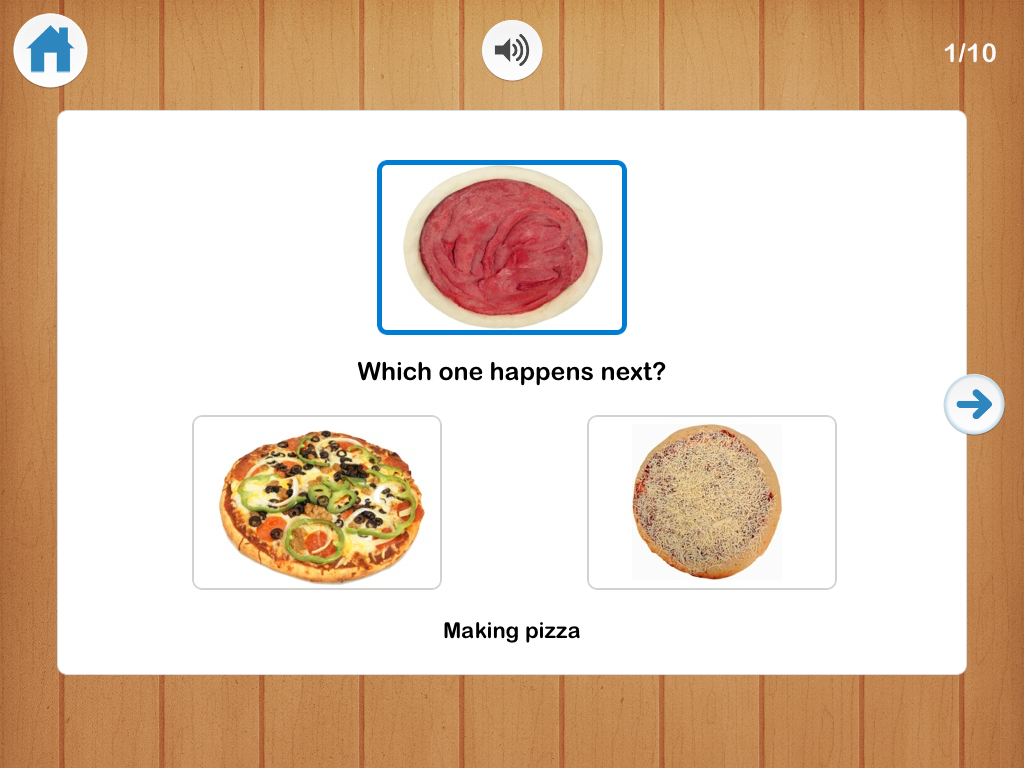
If you choose option #2, Identify the picture that occurs next, your student will be given 10 prompts that look like the one below. 
If you choose option #3, Touch the two pictures in the correct order, your student will be given 10 prompts that look like the one below. The have to first touch the picture that comes first, then touch the one that comes next. 
If you choose option #4, Put three pictures in the correct order, your student will be given prompts that look like the one below. Students will need to drag the pictures into the correct sequence. 
Last but not least, if you choose option #5, Number the steps to make the correct sequence, your student will be given prompts that look like the one below. He/she will be given number 1-4 at the top of the screen. He/she will then place the numbers next to the step in the correct sequence order. 
At the end of each section, you are prompted with a score sheet to let you and your student know how he/she did on these tasks.
I love that this app has so many different levels of sequencing. This is a simple app that is easy to use, yet is very complete and well worth the price. The pictures are clear, colorful, and engaging for students. I have used this app as both a teaching and assessment tool. The only suggestions I would make for this app are:
-Have the option to store student data.
-Have the option to combine sequencing tasks.
You can learn more and download this app in the iTunes store, here!

Powered by Blogger.